Chat list
Create, search, switch, rename, and delete saved conversations in the sidebar. Direct chat URLs preserve the active conversation on refresh. On mobile, selecting or creating a chat closes the full-screen sidebar.
The chat screen is the primary CE workspace. A signed-in user selects or creates a chat, sends a prompt to the currently loaded main model, watches the answer stream back, and keeps the result in their own history.
Admin model controls decide which local model is loaded. Normal users work with that loaded model rather than choosing or launching models themselves.
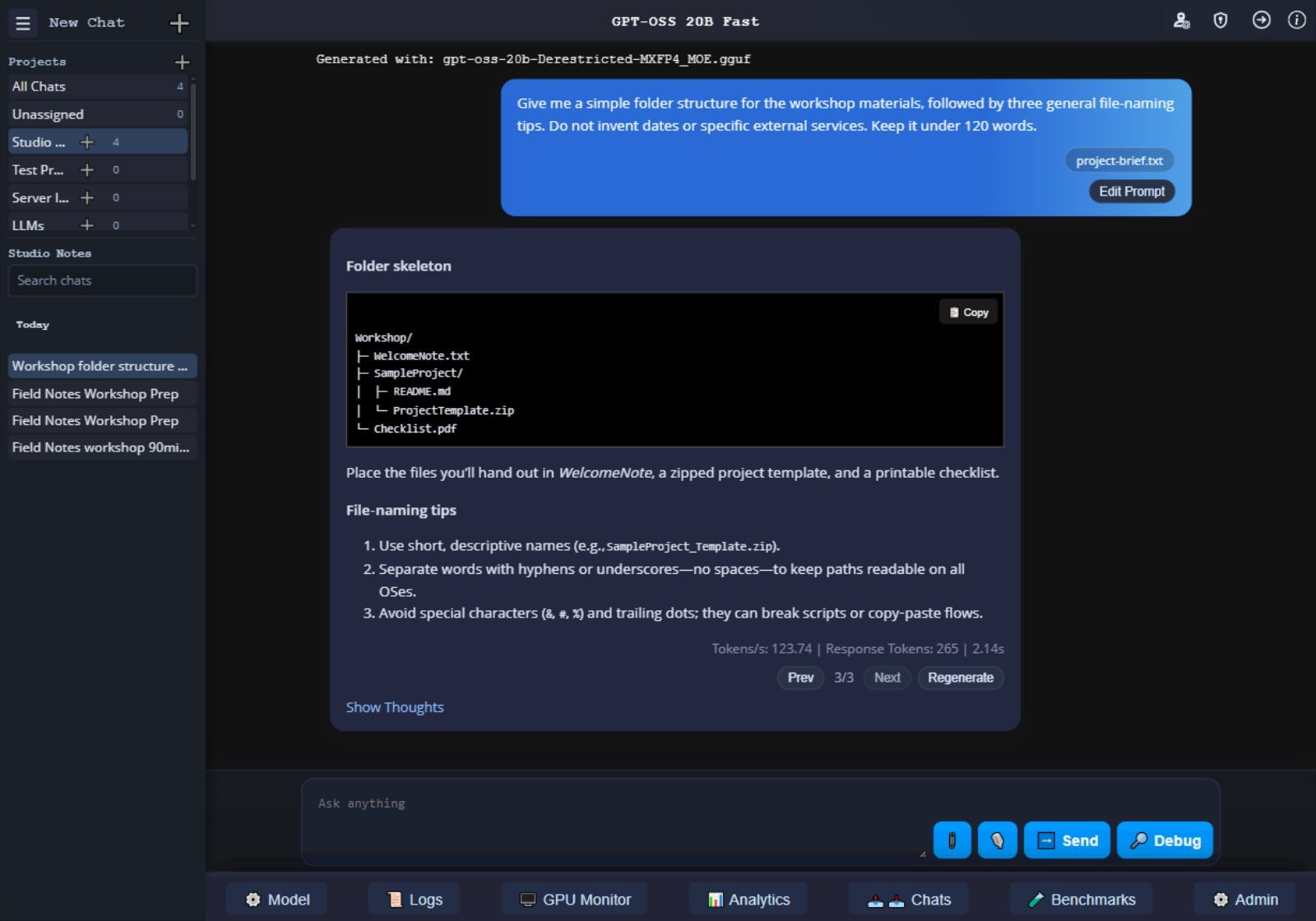
Create, search, switch, rename, and delete saved conversations in the sidebar. Direct chat URLs preserve the active conversation on refresh. On mobile, selecting or creating a chat closes the full-screen sidebar.
Browser chat uses Socket.IO. Responses stream into the active conversation and save on successful completion while the session remains valid. Interrupted partial responses are marked as interrupted and are not saved; a prematurely ended backend stream is not a completed answer.
During generation, the Send button changes to Stop. The active assistant bubble can also show an in-bubble Stop button. Both request cancellation for the active generation.
New user messages over 20,000 characters are rejected with a message asking the user to shorten the prompt or attach content as a file.
Projects group related conversations. Add Project Instructions for the work in that Project. Personal System Instructions are available under Account Settings → Instructions; Email and Password have separate tabs.
For subsequent browser chat requests, CE combines personal and Project instructions into one leading system message before conversation history and the current message. These preferences are not automatically added to API requests.
Project membership organizes chats. It does not provide automatic cross-chat conversational memory or a searchable knowledge base. Include the relevant material in the conversation.
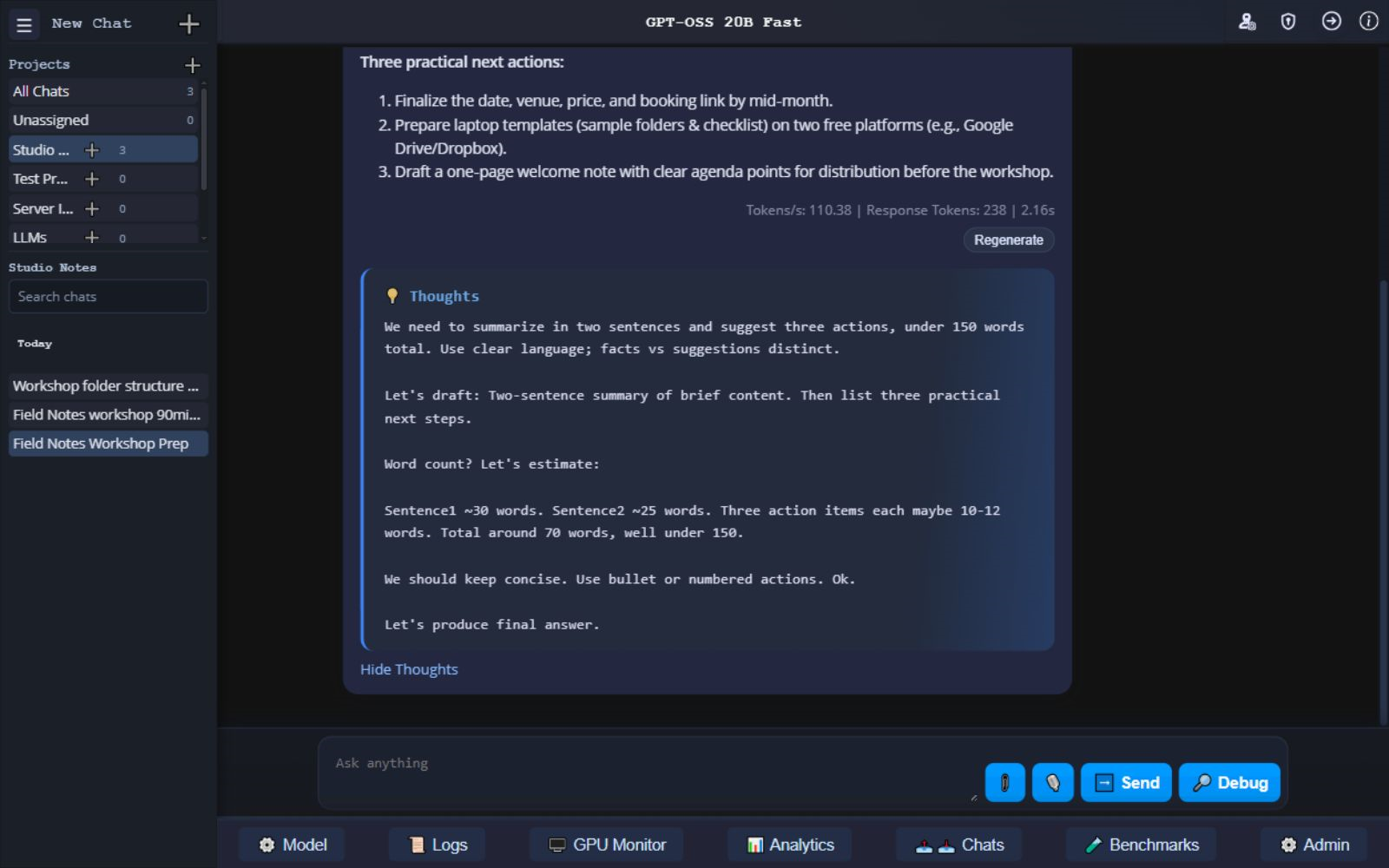
Streaming text appears as it arrives. After completion, Markdown is rendered through the app's sanitizer path, code blocks are enhanced, and math notation is passed to local MathJax assets when available.
When the model stream provides reasoning content or recognizable thought tags, the UI can show a separate reasoning/thoughts section apart from the final answer.
The Debug button is a user prompt visibility feature. It sends the current chat request to the loaded model and opens a modal showing the raw response process instead of rendering the answer directly into the chat transcript. Prompts are not saved to the chat history.
The modal helps users and operators inspect model behavior, response structure, and troubleshooting details. The Copy All Text button copies the full modal output. Debug output does not replace the normal chat renderer, and users should avoid sharing it publicly when it contains private prompt or context content.
Add files with the attachment picker, drag-and-drop, or supported clipboard paste. Text/code is handled natively; supported documents are converted locally with Docling. Images use a separate path.
| Material | Handling |
|---|---|
| Text and code | Supported text/code files become conversation context. |
| Documents | PDF, modern Microsoft Office/OpenDocument files and supported templates or macro-enabled variants; also supported email, EPUB, Apple Pages, and other document formats. Legacy binary DOC, XLS, and PPT are unsupported. |
| PDF preparation | Requires local Docling artifacts. Conversion uses the CPU with OCR disabled; image-only scans do not gain OCR text extraction. |
| Retention | Converted documents retain extracted Markdown/text and basic metadata, not their original binaries. Keep the original files separately. |
| Configured limits | Admins can configure up to 10 MiB per file and 40 MiB combined. These are supported ceilings, not new defaults. Saved count, context, and payload checks also apply. |
The browser socket transport has a separate 64 MiB bound for the encoded payload and overhead; it is not an attachment allowance. The API uses a separate 16 MiB request-body limit.
Full format and conversion reference · Prepare document support
Image understanding requires a compatible GGUF vision model, its matching multimodal projector, and a compatible llama-server build. The registry’s Images label alone does not enable it. See model configuration.
Supported images include PNG, JPEG, WebP, GIF, HEIC/HEIF, AVIF, TIFF, and BMP; SVG is unsupported. CE retains original images. TIFF and HEIC/HEIF have PNG previews; the model receives only the first frame/page of animated or multipage images.
Other supported formats are normalized to RGB PNG with transparency flattened onto white; converted images are limited to 16,777,216 pixels. This is image understanding, not generation or editing.
With the optional speech runtime running, click the microphone, speak, and finish recording. Review or edit the transcription in the composer, then click Send yourself. Dictation does not automatically send messages or speak the assistant’s replies.
Recordings are processed in memory rather than saved as an audio library. Normal typed chat works without Voice. See Local Voice for setup, microphone requirements, and troubleshooting.
Users can edit the latest prompt. The edit creates a new prompt version instead of rewriting older saved rows.
Regenerate uses the latest active prompt in the selected session and creates another response version for that turn.
Previous and next controls switch between latest-turn variants. The selected variant is saved for that user's session.
Export your conversations as JSON, CSV, or Markdown. Import JSON backups or CSV chat exports within your account scope. Review append/overwrite choices before importing.
| Format | What it preserves |
|---|---|
| Versioned JSON backup | Chats, Project definitions and instructions, chat-to-Project membership, and empty Projects within the exported scope. |
| Legacy JSON chat array | Older backups remain importable, but cannot restore Project membership because that metadata was absent. |
| CSV | Chat interchange; does not preserve Projects. |
| Markdown | A read-only archive for people to read, not a round-trip restore format. |
| SQLite | Administrators can import compatible SQLite backups with Project metadata, subject to header, integrity, schema, and ownership validation. |
After Clear Chat History, a versioned JSON restore reuses matching surviving Projects or recreates missing Projects with local IDs, then remaps chat membership. Unassigned chats stay Unassigned. Ownership boundaries still apply.
Maximum Chat Import Size controls the file-size allowance. There is no fixed 25,000-row ceiling in v1.4.0. Large imports still require sufficient host memory and request time.
Exporting does not clear the workspace. JSON backups are portable chat/Project backups, not complete installation backups. See operator backup responsibilities before replacing data.
www.llmcontroller.comLLM Controller on GitHub