Model drawer
The Model drawer shows whether the main model is running, the current model name, runtime mode, GPU layers, CPU threads, temperature, top-k, top-p, repeat penalty, and seed.
Runtime Visibility is the operator view of what the local model runtime is doing. The Model, Logs, and GPU Monitor drawers make model state, llama-server output, GPU load, and process visibility available next to the chat UI.
Normal signed-in users can view runtime status, logs, and GPU telemetry where the UI exposes them. Admins can also start/stop models, clear logs, and change runtime settings.
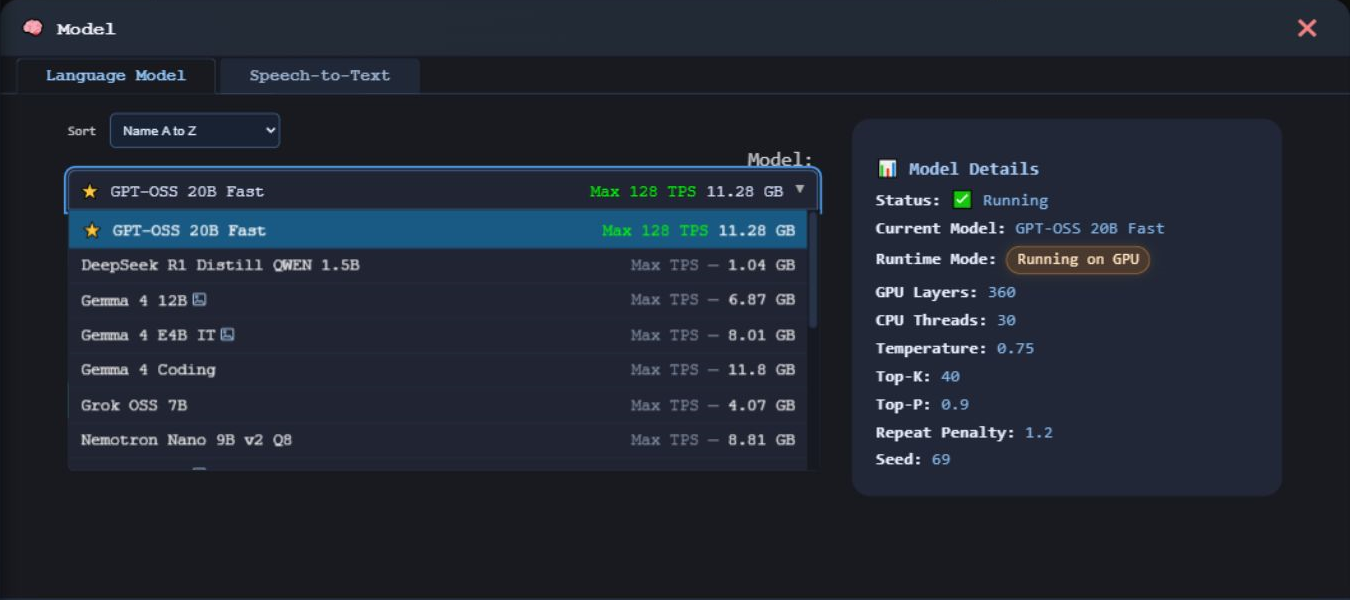
The Model drawer shows whether the main model is running, the current model name, runtime mode, GPU layers, CPU threads, temperature, top-k, top-p, repeat penalty, and seed.
Admins choose a present, enabled language model, configure launch options, and load/stop the main model. A selected picker row is not proof that the runtime is running or ready. Speech has separate explicit Start/Stop controls.
Main model start and stop controls are blocked while a benchmark is active, because benchmark runs interact with model process control.
Logs separates Language Model and Speech-to-Text output. Administrators use the speech view for startup progress, readiness, and failures; it refreshes while active. The CE console also reports speech lifecycle and child-process output.
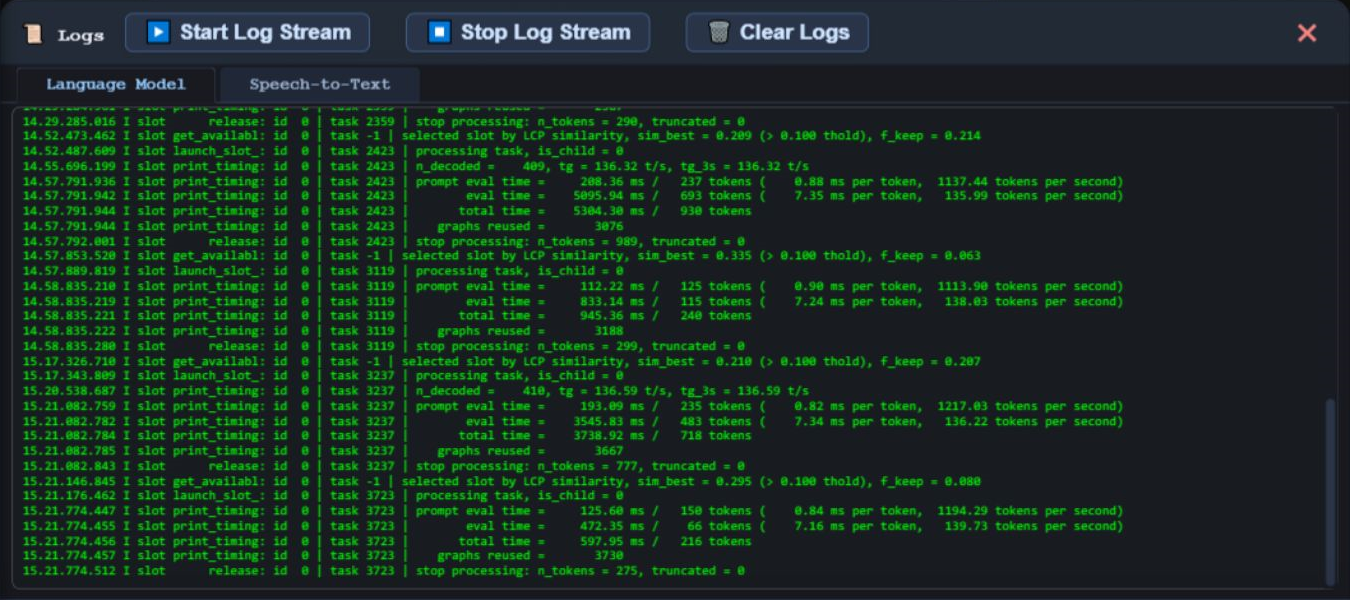
The Logs drawer shows llama-server log lines from the app's in-memory log buffer. Start Log Stream refreshes the view about every 1.5 seconds while the drawer is open; Stop Log Stream stops that polling.
Signed-in users can view logs. Admins also see Clear Logs, which clears the main and title model log buffers.
Logs help operators see model launch output, runtime readiness, errors, and llama-server messages without leaving the browser.
CE also exposes system RAM used/total and runtime/process visibility. Available telemetry does not establish speech compatibility: the validated voice path is Windows/NVIDIA CUDA.
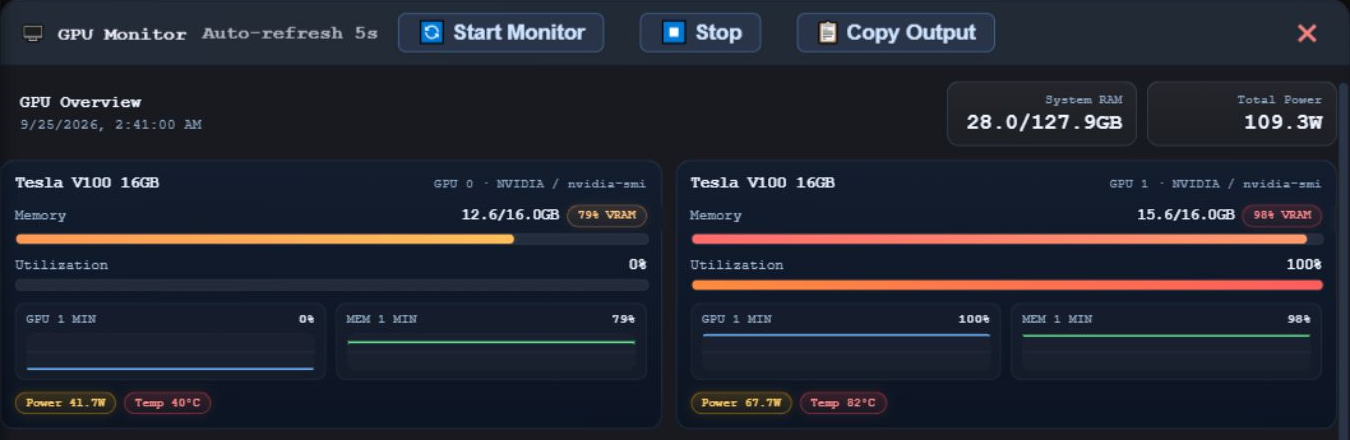
Start Monitor refreshes telemetry about every 5 seconds while the drawer is open. Stop pauses monitoring. Copy Output copies the raw telemetry output shown in the drawer.
The drawer can show GPU cards with memory usage, utilization, one-minute mini charts, power, temperature, total power, and last-updated time.
When supported, the drawer lists running GPU compute processes with PID, executable, per-GPU usage, and total VRAM.
The raw output panel shows the underlying local telemetry command output, such as nvidia-smi or rocm-smi output.
| Backend | What CE can show | Important limit |
|---|---|---|
| NVIDIA | Telemetry comes from nvidia-smi. CE can show GPU cards, utilization, memory, process rows, and raw output when the command is available. |
Visibility depends on local NVIDIA drivers and the command being reachable by the app process. |
| AMD / ROCm | Telemetry uses local ROCm tooling such as rocm-smi and rocminfo where available. |
Process-level telemetry is reported as unavailable for ROCm systems when the local tools do not provide it. |
| No supported telemetry | The drawer shows a no-data or no-backend message instead of GPU cards. | This does not by itself prove model inference is impossible; it only means CE cannot read telemetry from supported local tools. |
nvidia-smi, rocm-smi, or rocminfo must be installed and available.Leave the title picker at Select Title Generation Model to use the active main model. Administrators can select a present, enabled language model in Admin Settings for optional dedicated title generation.
A dedicated title runtime is used only when the managed lifecycle detects at least two usable GPUs and can host it. After changing selection, stop and reload the managed main model. Main-model fallback applies until the dedicated process is ready, or when the selection is disabled, missing, or unavailable.
A second model is optional; titles follow the managed main-model lifecycle. See the release-matched title workflow.
Selecting a speech model or saving configuration does not start it. Administrators use Model → Speech-to-Text → Start, wait for Running and Ready for dictation, and use Stop to release it. It stays loaded between recordings; restarting CE does not automatically start speech.
The speech service is separate from llama-server. Typed chat does not require a working speech setup. Use Voice troubleshooting for microphone, startup, and memory issues.
www.llmcontroller.comLLM Controller on GitHub